1
Login and navigate to scripting
Login to bunny.net dashboard, then navigate to Edge Platform > Scripting and click Add Script.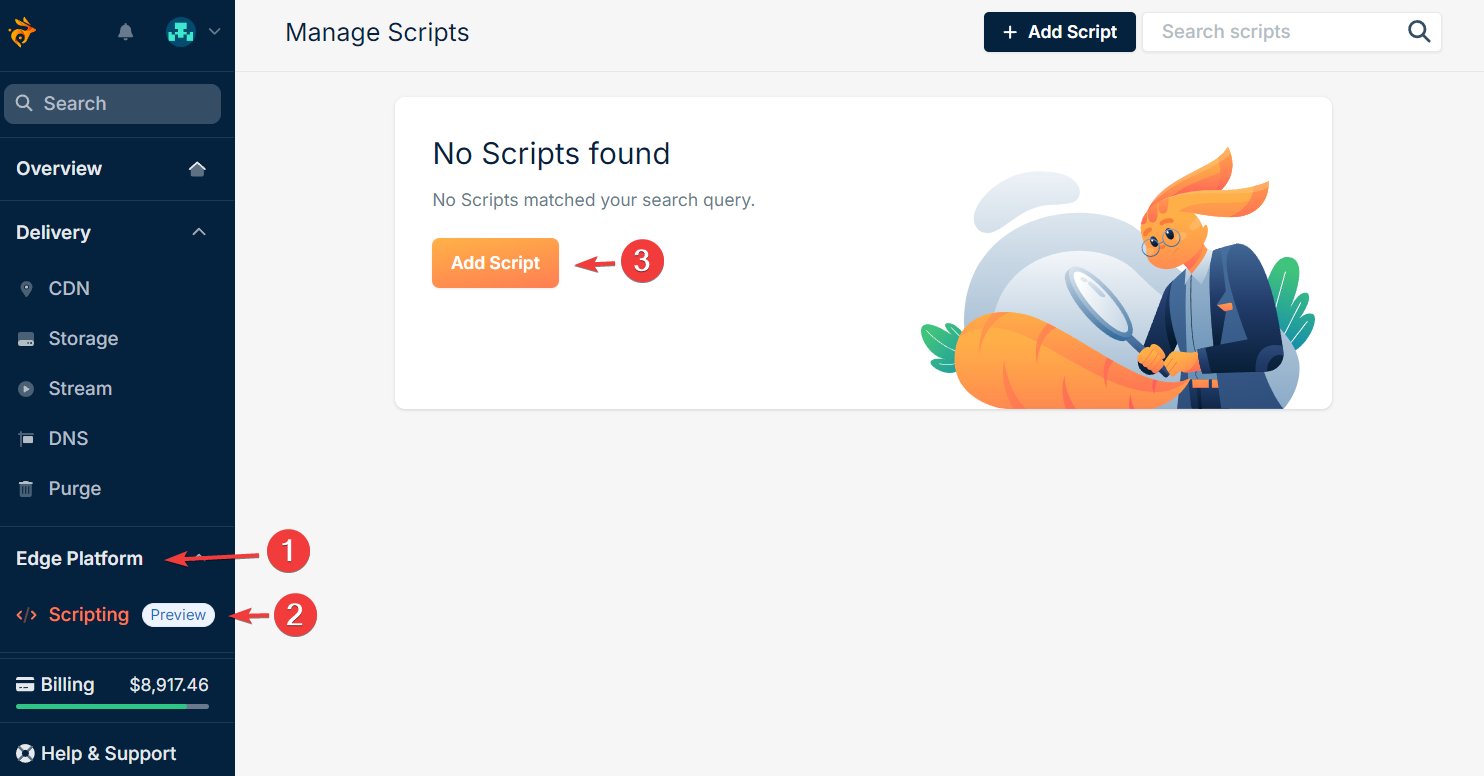
2
Select a script type
Provide a name for your script and select a script type:Click Add script.
- Standalone
- Middleware
Select Standalone type and then Default standalone template.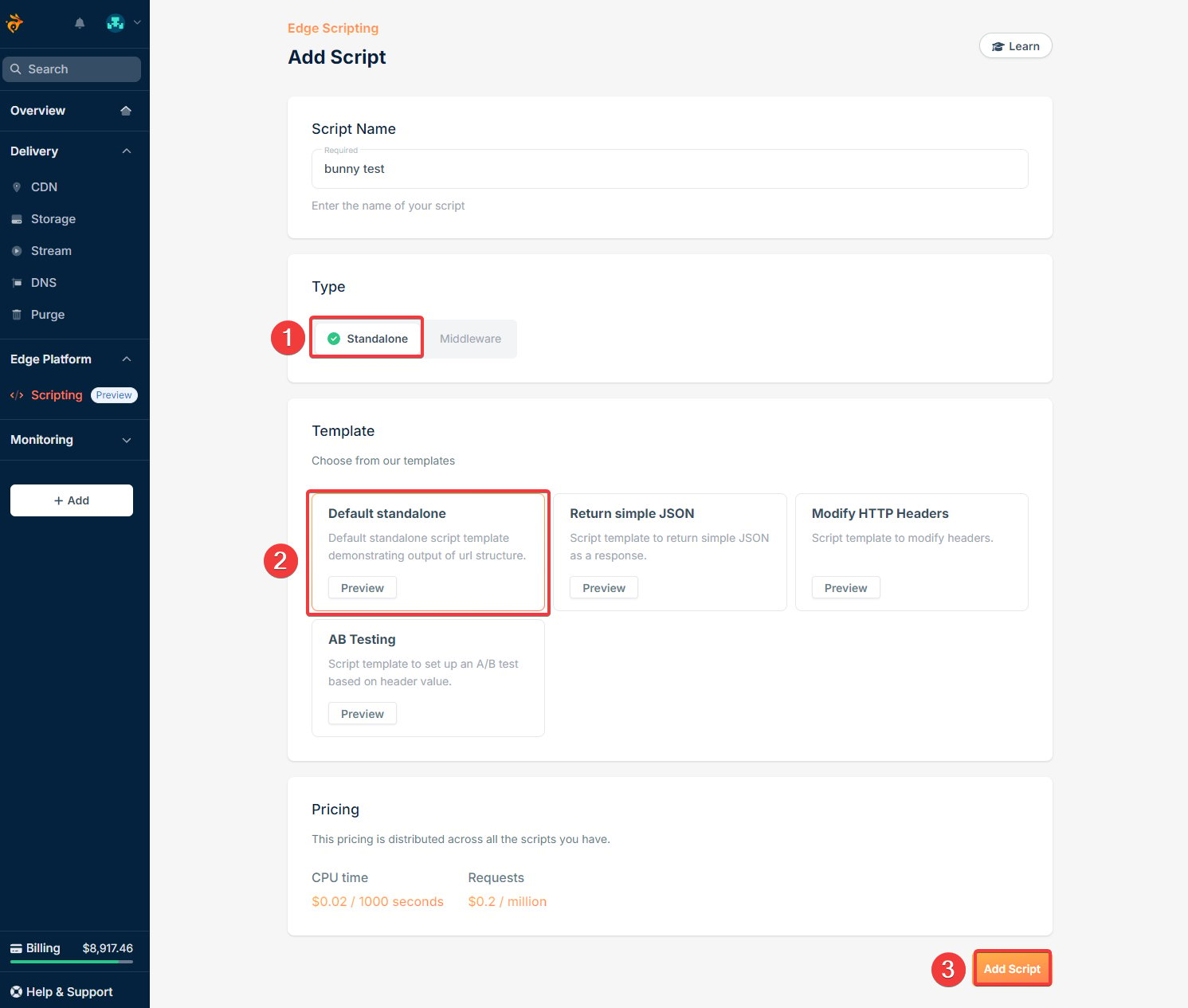
3
Explore the script editor
A pull zone is created for your script, so it is reachable from the outside through a unique URL. The script starts with a placeholder function that returns “Hello from” when you open that URL.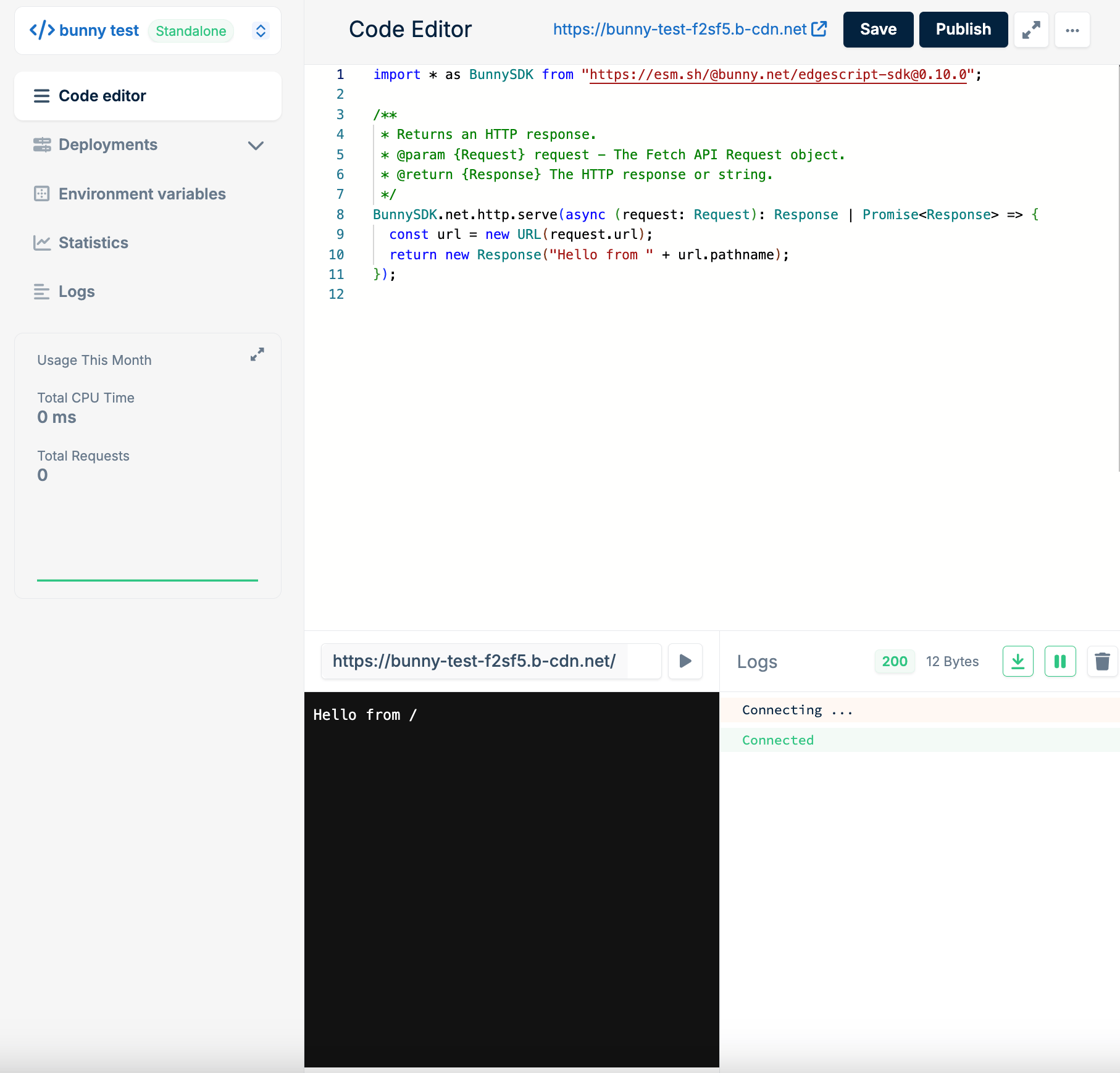
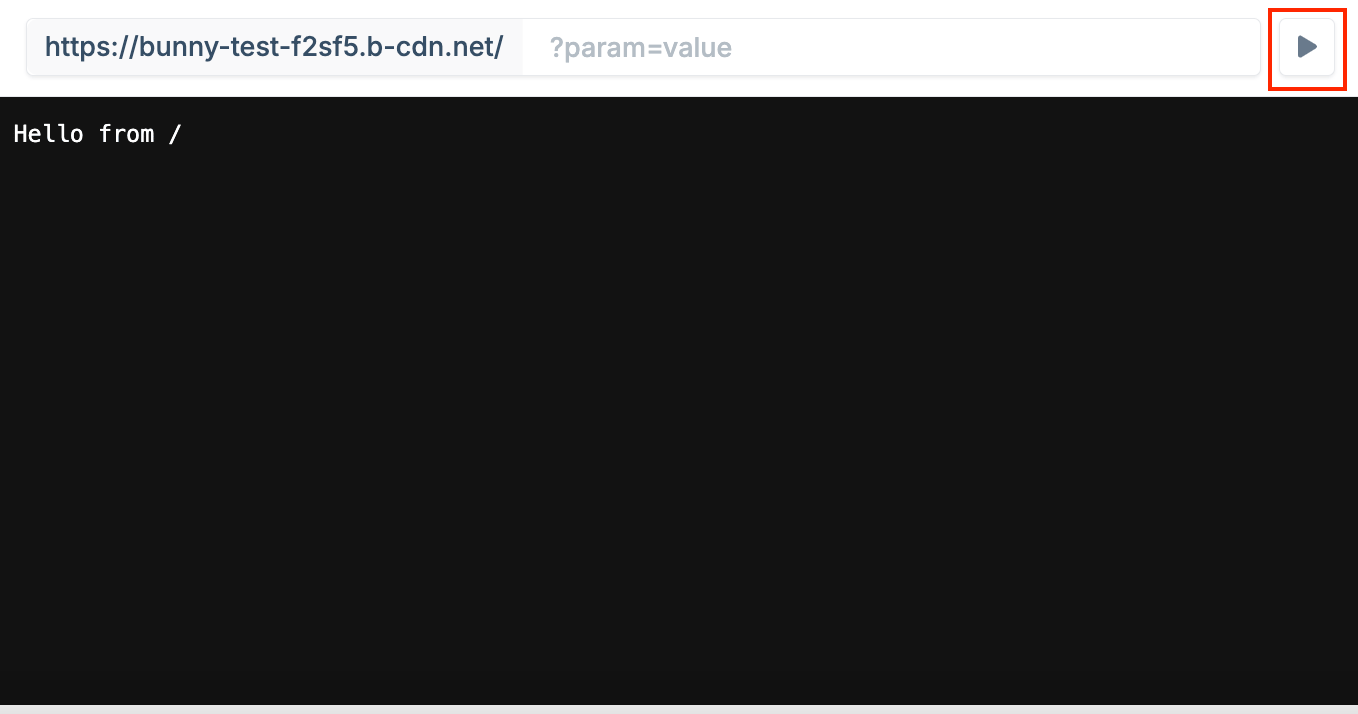
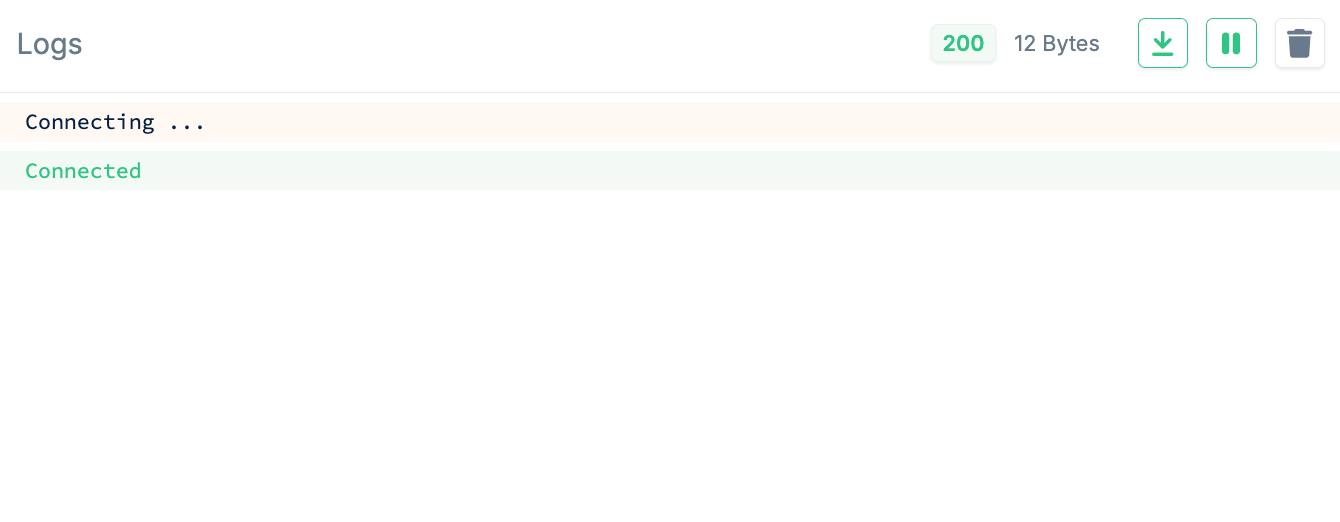
console.log calls made by the script when it is run in the preview pane.4
Edit and test your script
Replace the placeholder with your own code, then open the script URL to check
that your changes work.
5
Save and publish
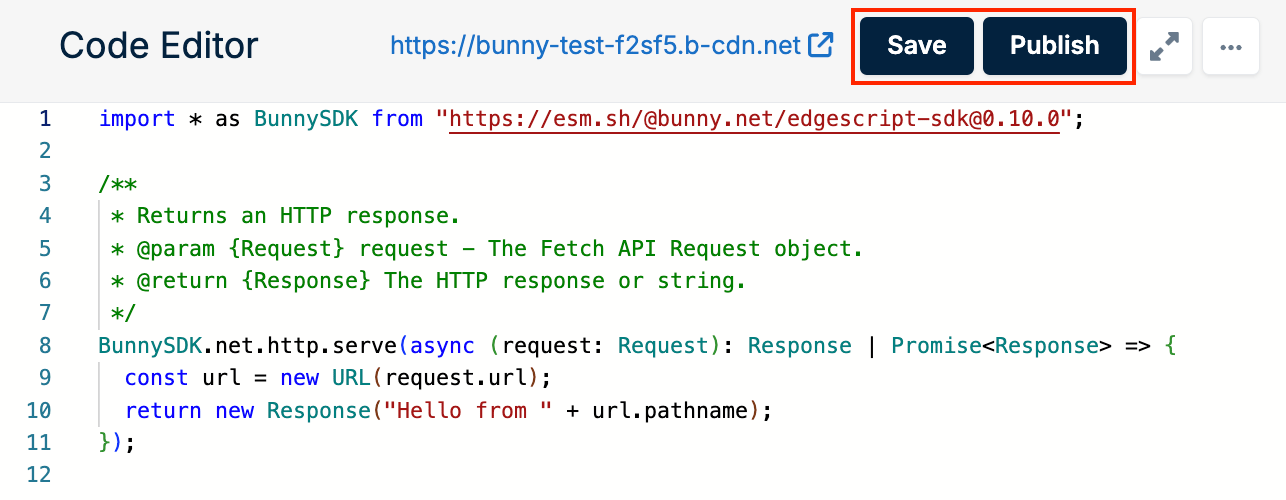
When you are happy with your script, click Save and Publish.